Documentation
A guide to ENGRAM Knowledge Hub — what it is, getting started, configuring your AI model, saving research, the Knowledge Hub, your knowledge graph, how ENGRAM remembers, and connecting external tools.
1. What is ENGRAM?
ENGRAM is a personal research assistant and Knowledge Hub. It turns your conversations and research into a structured, searchable personal knowledge graph — so the things you learn stay connected, retrievable, and useful long after the chat that produced them.
1.1 The core idea
Most chat tools forget. You have a great conversation, learn something, and a week later it's buried in scroll history. ENGRAM is built on the opposite premise: knowledge should accumulate. It does this with two layers working together:
- Memory — your conversations are distilled into long-term memories tied to the people, projects, technologies, and concepts they mention. When you ask a new question, ENGRAM recalls what's most related.
- The Knowledge Hub — when something is worth keeping, you save it as an article: a durable, structured document that becomes a first-class part of your knowledge graph.
Both layers are indexed the same way and retrieved together. Asking about a topic surfaces the articles, documents, and memories most associated with it — not just a keyword match, but an associative recall that follows the connections in your graph.
1.2 What makes it different
- It's personal. Your memories and private articles are yours alone. Nothing you write is visible to other users unless you explicitly publish it or share it.
- It's associative. ENGRAM uses a technique called Personalized PageRank over your knowledge graph to find what's related to your question, the way one idea reminds you of another.
- It's structured. Research becomes immutable, versioned articles — not disposable chat — so you can build a real personal reference library over time.
- It connects to your tools. Through a built-in integration, ENGRAM can capture work from Claude Code, Claude Desktop, ChatGPT, and other assistants, so your knowledge base grows wherever you do research.
1.3 The four areas of ENGRAM
ENGRAM is organized into four areas, each a tab in the app:
- Chat — ask questions and do research; ENGRAM retrieves relevant context from your knowledge graph as you go.
- Knowledge Base — your Library of articles and documents, plus a visual Graph Explorer of your topics.
- Coding Sessions — a record of your software work captured from coding assistants like Claude Code.
- Analytics — coverage, gaps, and activity across your knowledge base.
2. Getting Started with ENGRAM
This walks you through your first session — signing in, asking your first question, and saving your first piece of research.
2.1 Signing in
ENGRAM uses passwordless sign-in. Enter your email and you'll receive a magic link; clicking it signs you in. There's no password to remember, and your session stays active across visits.
2.2 A quick tour
The app has four tabs along the top:
- Chat — where you ask questions and do research.
- Knowledge Base — your Library of saved articles and documents, and a visual map of your topics.
- Coding Sessions — work captured from coding assistants like Claude Code.
- Analytics — a view of what your knowledge base covers and where the gaps are.
A brand-new account starts with an empty knowledge graph — that's expected. As you chat and save articles, it fills in.
2.3 Ask your first question
Open Chat and ask anything — for example, "What is ENGRAM and how do I use it?" As ENGRAM answers, it retrieves relevant context from your knowledge graph behind the scenes. When an existing article informs the answer, you'll see a blue Referenced pill on the message; click it to preview the source article.
Early on, your own graph is sparse, so answers lean on the assistant's general knowledge and any public articles available to everyone. The more you research and save, the more personal and precise retrieval becomes.
2.4 Save your first article
When a conversation produces something worth keeping, save it as an article. The simplest way is to type an action phrase in Chat:
create article: My first research note
ENGRAM drafts the article from your conversation, and you'll see a green Article saved pill. Open the Knowledge Base tab and it's there in your Library. Articles are private by default. The full set of save commands is in §4 Saving Research with Action Phrases.
2.5 Configure your AI model
Visit Settings to configure the AI model ENGRAM uses to generate responses and articles — you can bring your own provider and API key (Anthropic, Google, or OpenAI). See §3 Configuring Your AI Model for details.
3. Configuring Your AI Model (BYOLLM)
ENGRAM follows a bring-your-own-LLM (BYOLLM) model: you choose which AI provider and model generate your chat responses and articles, using your own API key. This keeps you in control of cost, capability, and your data.
3.1 What you can configure
In Settings, the LLM section lets you pick:
- Provider — Anthropic, Google, or OpenAI.
- Model — the specific model within that provider (the list updates to match the provider you choose).
- API key — your own key for that provider.
Once set, ENGRAM uses your configuration to generate chat answers and to draft and update articles. Changes take effect immediately — no restart, no waiting. Anthropic (Claude) models are a strong default for research and writing; Google (Gemini) and OpenAI (GPT) are fully supported. You can switch providers or models at any time; the change applies to your next message.
3.2 Your settings are yours
Your provider, model, and API key are stored on your own account and used only for your requests. They are never shown to or shared with other users. In the settings panel you'll only ever see a masked hint of your own key — never anyone else's. If you haven't set a personal key and the operator has provided a shared default, generation may still work out of the box; the settings panel will indicate when a server default is in use. Setting your own key gives you full control and ensures requests are billed to you.
3.3 What BYOLLM does not change
Some of ENGRAM's internal work — extracting entities, consolidating memories, labeling topics — runs on the system's own models and isn't affected by your BYOLLM choice. Your selection governs the user-facing generation: the answers you read and the articles ENGRAM writes for you.
3.4 The Profile panel
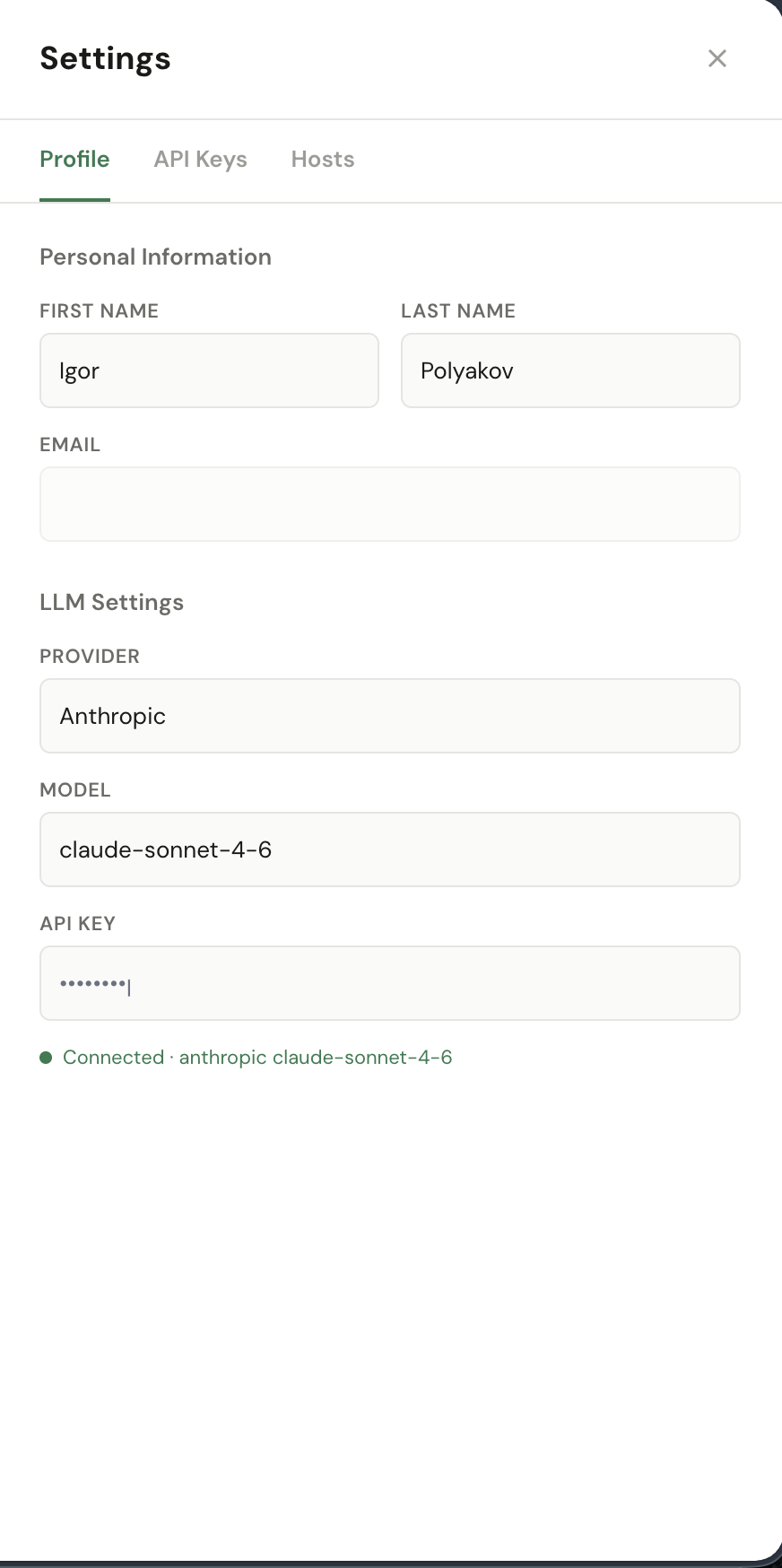
Open Settings from the avatar menu (top-right of the app). The Profile tab holds:
- Personal Information — first name, last name, email. Used by the app for greetings and for the audit log when you take admin actions.
- LLM Settings — your BYOLLM configuration (Provider, Model, API key). The API key is stored masked; only the last few characters are shown back to you. The green Connected indicator means ENGRAM has successfully reached your provider with the key.
3.5 Keeping keys safe
Your provider API key and any Personal Access Tokens are sensitive. Set them in Settings, keep them private, and rotate them if you suspect exposure. ENGRAM only ever displays masked hints of your keys, never the full value. (Personal Access Tokens for external tools are covered in §9.4 API Keys.)
4. Saving Research with Action Phrases
Action phrases are short commands you type in Chat to save and update articles without leaving the conversation. ENGRAM recognizes them automatically, drafts the content using your configured AI model, and shows a pill on the message confirming what happened.
4.1 The three commands
Create an article — drafts a new article from your current conversation:
create article: Comparing vector databases for RAG
You'll see a green Article saved pill when it's done.
Update an article — finds the article you mean and creates a new, superseding version:
update article: add a section on hybrid search trade-offs
You'll see an amber Article updated pill. Because articles are versioned, an update never destroys the previous version — it's preserved in the article's history.
Save the last response — captures the assistant's most recent response as an article:
save as article: [<title>]
The title is optional — if you leave it out, ENGRAM picks one. Handy when the answer you just got is itself the thing worth keeping.
4.2 Choosing a source with :from:
By default, create and update draw from your conversation,
and save as article draws from the last response. You can point a
command at a different source with a :from: suffix:
create article: Tavily vs. SerpAPI :from: web
Available sources:
- conversation — the current chat (default for create/update)
- last response — the assistant's latest message (default for save as)
- library — your existing articles and documents
- web — a live web search (when web research is enabled)
- attached — a document you've attached to the message
4.3 Finding the article afterward
Saved articles appear in your Library on the Knowledge Base tab. They're private by default. When an article later informs a chat answer, you'll see a blue Referenced pill linking back to it.
4.4 Natural language also works
You don't have to memorize the exact syntax. ENGRAM also recognizes natural requests like "create a report about X" or "update the article with Y" — the canonical phrases above are just the most reliable way to be explicit about what you want.
5. The Knowledge Hub: Articles and Documents
The Knowledge Hub is the heart of ENGRAM — where your research stops being disposable chat and becomes a durable, structured knowledge base. It holds two kinds of content: articles and documents, both browsable in the Library on the Knowledge Base tab.
5.1 Articles
An article is a structured markdown document — a comparison, an architecture analysis, a literature review, a how-to, a decision record. Unlike a chat message, an article is a first-class entity in your knowledge graph: it's split into sections and passages, its key concepts are extracted as entities, and it participates in retrieval alongside your memories.
- Immutable and versioned. Articles are never edited in place. When you update one, ENGRAM creates a new version that supersedes the old one, preserving the full history. The Library shows the latest version of each article.
- Private by default. Only you can see your articles unless you choose to publish them.
- Entity-linked. The people, projects, technologies, and concepts an article mentions become connections in your graph, so related questions can surface it later.
5.2 Documents
A document is a file you upload — a PDF, a markdown file, or plain text — that you want ENGRAM to read and index. Like articles, documents are split into passages, entity-linked, and retrievable. Use documents for source material you didn't write yourself but want to reference: a paper, a spec, a report. Documents are also private by default.
5.3 Public vs. private
Both articles and documents carry a visibility setting: private or public.
- Private content is visible only to you and only influences your retrieval.
- Public content is visible to every ENGRAM user and can inform anyone's answers — useful for shared reference material and onboarding content.
Publishing is a deliberate, one-way action: you can make private content public, but you cannot un-publish it. Make something public only when you're sure you want to share it.
5.4 The Library
The Library (on the Knowledge Base tab) lists your articles and documents with type badges so you can tell them apart at a glance. From here you can open an article to read it, view the entities it mentions, see its version, and toggle its visibility.
5.5 How content gets in
You create articles by:
- typing action phrases in Chat (for example,
create article: <title>), - uploading documents directly, or
- syncing content from external tools through the MCP integration (for example, the
/add-to-engram-kband/sync-to-engram-kbcommands in Claude Code).
See §4 Saving Research with Action Phrases and §9 Connecting External Tools for the full workflows.
6. Exploring Your Knowledge Graph
Beyond reading individual articles, ENGRAM lets you see your knowledge as a connected whole. The Graph Explorer on the Knowledge Base tab turns your articles, documents, and the entities they mention into a navigable map of your topics.
6.1 Why a graph view
A list of articles tells you what you have; a graph tells you how it fits together. The Graph Explorer reveals clusters of related work, the concepts that bridge them, and the corners of your knowledge that are thin. It's the fastest way to rediscover something you half-remember and to see the shape of what you know.
6.2 Three ways to look
- Overview — a three-level topic map. ENGRAM automatically groups your entities into topics (communities of frequently co-occurring concepts), then sub-topics, down to a leaf view that links topics to the specific articles and documents under them. Click through the levels to drill from the big picture into the detail.
- Connections — an ego-view centered on a single entity, showing what it's directly linked to. Good for "what do I know that touches this?"
- Entities — a focused view of the entities themselves and how they relate.
6.3 The topic map
The Overview topic map is generated for you — ENGRAM clusters your knowledge into labeled topics so you don't have to organize anything by hand. As your knowledge base grows, you can refresh the topics to recompute the clusters, and you can rename any topic to a label that makes sense to you; your custom labels are preserved across refreshes. A topic map needs some content to be meaningful — early on it may be sparse, and it becomes genuinely useful once you've saved a handful of articles and had a few research conversations.
6.4 Coverage and gaps
The Analytics tab complements the graph with a coverage view: which entity types and topics you've covered well, where the gaps are, your most-referenced entities, and recent activity. Use it to spot areas worth researching next.
7. How ENGRAM Remembers: Chat, Memory, and Retrieval
ENGRAM's defining feature is that it remembers — not by storing raw transcripts, but by distilling your conversations into structured memories and recalling what's relevant when you need it.
7.1 From conversation to memory
As you chat, ENGRAM identifies the meaningful entities in the discussion — the projects, technologies, people, and concepts — and forms memories linked to them. Important moments (saving an article, attaching a document, a substantive exchange) carry more weight. Over time these consolidate into long-term memory: a durable, associative record of what you've worked on. This is loosely modeled on how human memory works — a short-term working set that consolidates into long-term storage, organized by association rather than by timestamp.
7.2 Associative retrieval
When you ask a question, ENGRAM doesn't just keyword-match. It:
- extracts the key entities from your question,
- locates them in your personal knowledge graph, and
- spreads activation outward to find what's related — using a technique called Personalized PageRank — across your memories, articles, and documents.
The result is context that reflects the connections in your knowledge, so a question about one topic can surface a related article you wrote weeks ago.
7.3 What you see in Chat
- Referenced pills (blue) appear on an answer when existing articles informed it. Click one to preview the source.
- Article saved (green) and Article updated (amber) pills confirm when an action phrase created or revised an article.
7.4 The Memory Explorer
Open the Memory Explorer (the brain icon in the Chat toolbar) to see your memory at work:
- Working memory — what the current session is holding, grouped by shared entities.
- Consolidation — the background process that promotes working memory into long-term memory, with its schedule.
- Long-term memory — your most important durable memories, sortable by importance, recency, or how often they've been recalled.
- Suggestions — memories awaiting your review, to Accept or Reject (see §10 Authoring & Sharing Memories).
- Sharing — grants you've made and memories others have shared with you, each with a revoke or "shared with you" marker (see §10.6 Sharing a memory).
Everything here is ENGRAM remembering by observing your work. You can also remember deliberately — commit a fact on the spot, capture a session's worth at its close, or review memories ENGRAM proposes. See §10 Authoring Memories.
7.5 Your memory is private
Your memories are scoped to you. They shape your retrieval and no one else's. Public articles are shared across users by publishing; your conversations and the memories drawn from them stay private by default — shared with another person only when you make a deliberate, revocable grant (see §10.6). A new account retrieves mostly from general knowledge and any public articles; as you research and save, your graph fills in, and retrieval becomes steadily more personal and precise. The work you put in compounds.
8. Projects and Provenance: Organizing Your Knowledge
ENGRAM remembers not just what you know, but where it came from — its provenance — and lets you group related work into projects. Together these keep a growing knowledge base organized and traceable, no matter how many tools and conversations feed into it.
8.1 Where your knowledge comes from
Every article, document, and memory in ENGRAM remembers the activity that produced it. There are three kinds of sources:
- A conversation — a chat in ENGRAM, or an external chat (Claude Desktop, ChatGPT, and others) that you captured.
- A coding session — a Claude Code session you ingested from your terminal.
- A tool capture — when a connected agent saves a file or note directly through ENGRAM's tools, with no back-and-forth chat.
You'll see this as a Source line on an article or document, and as a source chip in the Memory Explorer. Provenance means you can always trace a piece of knowledge back to the work that created it.
8.2 Projects: one body of work
A project groups everything that belongs to one body of work — its conversations, coding sessions, captured research, and the articles and documents derived from them — no matter which tool produced them. A project is usually one repository or one topic you're researching.
Projects share a single namespace: a repo's coding sessions, the external chats you had about it, the articles you synced from it, and your in-app conversations can all live under the same project when they share a name. One project = one body of work.
Conversations you start in ENGRAM Chat without choosing a project land in your default project, named “ENGRAM KB” out of the box. (An administrator can change that default name in Administration → Settings → Projects.) Every project — including the default — is yours alone; the PRIVATE pill is a reminder that a project and its contents are visible only to you.
8.3 The Projects panel
Click the Projects icon (just left of the column title) on Chat, Knowledge Base, or Coding Sessions to open the Projects panel. It lists your projects, each tile showing a composite count — conversations · articles/documents · sessions — so you can see what's in it at a glance, when it was last active, a Default badge on your default project, and a PRIVATE pill. Search by name, or use + New to create a project — typing a name that already exists simply selects it.
8.4 Pinning an active project
Selecting a project pins it across Chat, Knowledge Base, and Coding Sessions at once, and the choice persists across reloads. The Project: <name> chip shows what's active; while a project is pinned, each area shows only that project's items, and new chat conversations file into it automatically. Click the × on the chip to return to All Projects — the no-filter view that shows everything, and the default when you first arrive.
8.5 Renaming and moving
Hover a project tile in the panel and click the pencil to give the project a friendly display name — this changes only how it's labeled, not what's in it.
To re-file something, open the actions menu (the ⋮ icon) on an in-app or external conversation, or on an agent-captured article, and choose Move to project, then pick a target (or create a new one). A few things move on their own, by design:
- Articles and documents derived from a conversation follow that conversation — move the conversation and they come along, so there's no separate “Move” on them.
- Coding sessions stay with their repository; regroup them by working with the project as a whole rather than moving sessions one at a time.
8.6 Projects across the app
- Chat — the conversation sidebar filters to the active project, and new chats file into it.
- Knowledge Base — the Library shows the active project's articles and documents.
- Coding Sessions — pick a project to see its sessions and insights dashboard, or choose All Projects to browse sessions across everything.
Because provenance is tracked and projects share one namespace, the knowledge you produce across many different tools converges into one organized, traceable knowledge base — and moving a conversation to a better-fitting project quietly brings its articles, documents, and memories along with it.
9. Connecting External Tools to ENGRAM
Much of your research happens outside the ENGRAM app — in coding assistants like Claude Code, in Claude Desktop, in ChatGPT. ENGRAM connects to these tools so the knowledge you produce there flows into your knowledge base, instead of being stranded in another window. The bridge is an MCP server (Model Context Protocol) that ENGRAM exposes; any MCP-capable tool can use it to read from and write to your knowledge base on your behalf.
9.1 Overview
You authenticate external tools with a Personal Access Token (PAT) — a key beginning
engram_pat_ that you generate in Settings → API Keys. The token identifies
you, so anything a connected tool syncs lands in your knowledge base. Add the ENGRAM MCP server
to your tool's configuration with your token, and the tool gains a set of ENGRAM actions:
- Save articles — write a new article (
create_article) or sync a file as an article that updates cleanly on re-sync (sync_article). - Search and retrieve — find articles by title, discover related articles by topic, or pull an article's full content.
- Capture external conversations — record research done in an external chat (Claude Desktop, ChatGPT, Gemini) so its concepts join your memory graph (
record_external_conversation). - Ingest coding sessions — bring your software work into ENGRAM, so it shows up in the Coding Sessions tab and a chat question can surface the work connected to a topic.
Everything synced through a connected tool inherits your account's privacy: articles and documents are private by default, and only become public if you explicitly publish them. Your PAT is the key to your knowledge base — keep it secret, and revoke it in Settings if it's ever exposed. The sections below walk through the setup, the available tools, and per-client configuration.
9.2 The MCP server
ENGRAM exposes an MCP (Model Context Protocol) server so your local agents — Claude Code, Claude Desktop, or any other MCP-compatible client — can read, search, and write articles in your knowledge base. The same tools also drive coding-session ingest, external-conversation capture, and the Knowledge Gaps closure loop.
The ENGRAM MCP server lives at https://engram.pvelua.net/mcp/ (the trailing
slash is required). It authenticates per-user via a Personal Access Token (PAT) you mint
from your Settings panel.
9.2.1 Configuration
Step 1 · Mint a PAT
Sign in to ENGRAM, click your avatar (top-right), open Settings → API Keys,
and click + Create Key. Give it a memorable name (e.g.
"Claude Code on MacBook") and copy the engram_pat_… token
immediately — the raw key is shown only once. If you lose it, just create
a new one and revoke the old.
See §9.4 API Keys for the full panel walkthrough.
Step 2 · Claude Code
Claude Code speaks MCP over HTTP natively — no wrapper needed. Run this once from any
terminal (the -s user flag scopes the registration globally so it works
from any project):
claude mcp add -s user --transport http engram-kb \
https://engram.pvelua.net/mcp/ \
--header "Authorization: Bearer engram_pat_your_token_here"
Verify with claude mcp list — the engram-kb entry should report
✓ Connected. Restart any open Claude Code session for the new server to load.
~/.claude.json,
export it as a shell env var first (export ENGRAM_PAT=engram_pat_…),
then reference it in the header. Note that claude mcp add resolves env
vars at registration time and bakes the literal value into the config — for true
"no plaintext at rest", scope the registration to a project
(-s project) and gitignore the resulting .mcp.json.
Step 3 · Claude Desktop
Claude Desktop's built-in MCP runtime is stdio-only for non-public servers, so we use
mcp-remote — a small npm package that runs as a local stdio process and
relays JSON-RPC to a remote HTTP MCP endpoint. Edit your
claude_desktop_config.json (see paths below) and add this entry:
{
"mcpServers": {
"engram-kb": {
"command": "/usr/local/bin/npx",
"args": [
"mcp-remote",
"https://engram.pvelua.net/mcp/",
"--header",
"Authorization: Bearer ${ENGRAM_PAT}"
],
"env": {
"ENGRAM_PAT": "engram_pat_your_token_here"
}
}
}
}
Config file location:
- macOS:
~/Library/Application Support/Claude/claude_desktop_config.json - Windows:
%APPDATA%\Claude\claude_desktop_config.json
Restart Claude Desktop after editing. The MCP indicator (Settings → Developer) should show engram-kb as connected.
/mcp/ is load-bearing
(no slash → 307 redirect that the JSON-RPC client doesn't follow).
And command needs an absolute path to npx — Claude Desktop
launches with a stripped PATH so a bare npx won't resolve.
which npx in your terminal tells you the right path
(Homebrew installs put it at /usr/local/bin/npx on Intel Macs or
/opt/homebrew/bin/npx on Apple Silicon).
9.3 The MCP tools
ENGRAM exposes 31 MCP tools across nine capability groups. Each tool is callable by the agent as soon as the server is registered — you don't import or list them explicitly. Just describe the task in natural language ("save this draft to my KB", "find articles related to X", "remember this decision in ENGRAM") and the agent picks the right tool.
(repository, file_path). Idempotent — re-runs produce a superseding version, not a duplicate.Key params:
title, content_markdown, repository, file_path.Example: "Sync docs/architecture.md to my ENGRAM KB."
Key params:
title, content_markdown, optional source_agent, tags, reason.Example: "Draft a comparison of vector databases and save it as a new ENGRAM article."
create_article (which has no file key, so sync_article can't supersede it) — a correction, an expansion, a re-draft.Key params:
article_id, content_markdown, optional title, tags, reason (recorded on the version edge).
Key params:
article_id, visibility (public).
Key params:
query, limit (default 10).Example: "Search my KB for articles about authentication."
Key params:
query, limit (default 10).Example: "Find ENGRAM articles related to vector database comparisons."
version and is_latest so the agent knows whether it's reading current content.Key params:
article_id.
creation_trigger, since, and tag filters.Key params:
limit, optional creation_trigger, since, tag.
:CodeSession + :CodeRecap + :CodeAction nodes.Key params:
session_id (the JSONL filename UUID; the server finds it under ~/.claude/projects/).Note: requires the operator to enable code-session ingest globally.
find_related_articles but over your coding history.find_related_articles.Key params:
query, limit (default 10).Example: "What did I do about Neo4j connection pooling in past sessions?"
Key params:
summary, source_agent, external_project, conversation_ref, optional related_repo, tags.Pattern: call this first to register the external conversation, then pass the same
(source_agent, external_project, conversation_ref) tuple as source_conversation_ref on a subsequent create_article/sync_article call for end-to-end provenance.
remember. Returns the memories relevant to a query: your own, plus any explicitly shared with you, each tagged with why it surfaced.Key params:
query (free text) and/or entities, horizon (long_term | working | both), optional limit.Example: "Recall from ENGRAM what we decided about the database."
Key params:
content, scope (long_term across sessions, or working for the current task), optional salience.Example: "Remember in ENGRAM that we chose PostgreSQL over MySQL for its JSONB support."
recap_id for the accept step.Key params:
context_ref (the session/task to reflect over), context_kind, optional task_ref.Example: "Commit the memories from this session."
Key params:
items (the list of notes), context_ref, context_kind.Example: "Suggest for my memory: the rate limit is 100 req/s; caching is deferred to v2."
commit_task_memories or suggest_memories and want to make those memories recallable. (You can also Accept/Reject from the Suggestions inbox in the Memory Explorer.)Key params:
recap_id (returned by the commit/suggest call).
accept_memories. (The same inbox is the Suggestions section of the Memory Explorer.)Key params: none required.
Key params:
selector_kind (memory | context | project), selector_id, grantee (email or user_id), optional bound_scope, expires_at.Example: "Share that PostgreSQL-vs-MySQL decision memory with alice@example.com."
Key params:
direction — by (grants you made, incl. revoked — your audit trail) or with (active grants made to you).
Key params:
share_id (from share_memory or list_shares).
share_memory, which grants durable long-term recall. The named records are copied at share time, so your later edits never leak unless you push an amendment.Key params:
session_id, record_ids, recipients, optional shape (bilateral | pool), task_ref, ttl_seconds.
Key params: optional
role (filter by agent role), query (name / email match).
Key params:
name, agent_role (e.g. researcher, coder, reviewer).
Key params:
user_id (the sub-agent's id, from create_sub_agent), optional pat_name.
Key params: optional
cursor (page from the last row), limit.
key_id of the one to retire or rotate.Key params:
user_id (the sub-agent's id).
Key params:
user_id, key_id (from list_sub_agent_pats).
Key params:
user_id, key_id, optional pat_name.
:GapItem nodes) — topics where the KB has thin coverage or known retrieval failures.Key params: optional
type, severity, status, limit.
Key params:
item_id, action_type, plus context fields like proposed_title, draft_excerpt, draft_markdown.
action_type specifies.Key params:
proposal_id.
9.4 API Keys (Personal Access Tokens)
Personal Access Tokens (PATs) let external agents — Claude Code, Claude Desktop,
and the engram-watcher CLI — call ENGRAM on your behalf. Each token authenticates
as you: anything it does shows up in your audit history.
Create a PAT
Click + Create Key, give it a name that identifies where you'll use it
(e.g. "Claude Code — MacBook", "Claude Desktop — Work"),
and confirm. ENGRAM shows the full engram_pat_… token once.
engram_pat_rjkcy…2wCM) for identification.
Revoke vs Delete
- Revoke: immediately invalidates the token — any further request returns 401. The row stays in the list (now marked Revoked) so the audit history retains the name and creation context. Use this when you suspect a token has leaked or you're rotating credentials.
- Delete: removes the row entirely. Equivalent to "revoke + forget" — pick this once you're sure you'll never need the row for forensic context. Already-revoked tokens are also safe to delete.
Each row shows Created and Last used dates — useful for spotting tokens that haven't been touched in a while (candidates for cleanup) or, conversely, tokens that are seeing unexpected traffic.
9.5 Hosts
The Hosts tab lists every machine that has uploaded a Claude Code session
to your KB via the engram-watcher CLI. Each row is auto-created the first time
a host posts a session — the hostname comes from socket.gethostname() on the
sending machine.
Label — click on a host's name to give it a friendlier display name
(e.g. "Work MacBook Pro 14" for MacBook-Pro14.local). The label is
used everywhere the host appears in the UI: the Coding Sessions panel, the Project insights,
and host-grouped filters. The raw hostname stays as the system-level identifier.
Sessions / First seen / Last seen — counters and timestamps maintained by the ingest pipeline. Useful for spotting hosts that have gone quiet (laptop in storage, watcher daemon stopped) or for confirming a freshly installed watcher is talking to ENGRAM.
engram-watcher CLI produce Hosts rows. If you've registered a PAT but
haven't installed the watcher yet, this tab stays empty — that's expected.
9.6 Claude Code slash commands
ENGRAM ships with five Claude Code slash commands that wrap the most common KB
workflows. Each one is just a markdown prompt that Claude Code runs when you type
/<name> in any session — they don't add new MCP tools, they
compose the tools you already have. Install once, use everywhere.
9.6.1 Installing a command
Slash commands live in one of two folders, depending on whether you want them global or per-project:
- Global (available in every project) —
~/.claude/commands/<name>.md - Per-project (only when you're inside that repo) —
<repo>/.claude/commands/<name>.md
To install any of the five commands below, copy the markdown into a file with the
corresponding name. For example, to add /find-in-engram-kb globally:
mkdir -p ~/.claude/commands
# paste the markdown for /find-in-engram-kb (shown below) into this file:
$EDITOR ~/.claude/commands/find-in-engram-kb.md
Claude Code picks up new commands without a restart — open a fresh session and
type / to confirm /find-in-engram-kb appears in the
autocomplete list.
engram-kb MCP server is registered — see §9.2.1
Configuration. The commands have a curl fallback for the rare case
where MCP isn't reachable, but the MCP path is the primary one.
9.6.2 /add-to-engram-kb
One-shot import of a local file into the KB as a brand-new article. Use this when the
file is a one-off — a paper you just wrote, a meeting transcript, a research note that
won't get re-iterated. For files that will get edited and re-synced over time,
prefer /sync-to-engram-kb — it produces
superseding versions instead of duplicates.
Read the file at $ARGUMENTS and add it to the ENGRAM Knowledge Base.
**Provenance:** this is a coding-agent file capture. The article's context is the
repository + file it was added from — recorded as a `:Context` (agent-capture),
NOT a conversation. Do **not** call `record_external_conversation`: there is no
single chat that owns a repo file (it evolves across many sessions). The
`source_agent` + `repository` + `file_path` you pass below ARE the provenance.
Steps:
1. Read the file content at the path specified
2. Extract the title from the first `# ` heading in the file. If no heading exists, use the filename without extension as the title
3. Determine the current git repository name using `git remote get-url origin` (strip the `.git` suffix and any `git@host:owner/` or `https://host/owner/` prefix to get the bare repo name) or fall back to the directory name
4. Use the ENGRAM KB MCP tool `create_article` with:
- title: the extracted title
- content_markdown: the full file content
- source_agent: "claude_code"
- repository: the git repository name (from step 3)
- file_path: $ARGUMENTS
- reason: "Added via /add-to-engram-kb command"
5. Report success: confirm the article was created with its title and article_id
If the MCP tool is not available, fall back to a direct API call:
```bash
curl -s -X POST https://engram.pvelua.net/api/articles \
-H "Authorization: Bearer $ENGRAM_PAT" \
-H "Content-Type: application/json" \
-d '{"title":"<title>","content_markdown":"<content>","creation_trigger":"external","source_context":{"agent":"claude_code","repository":"<repo>","file_path":"$ARGUMENTS","reason":"Added via /add-to-engram-kb command"}}'
```
9.6.3 /sync-to-engram-kb
Idempotent mirror of a file into the KB. Re-running on the same
(repository, file_path) tuple produces a new superseding
version instead of a duplicate — the previous version stays reachable through the
article's version chain. Use this for design docs, ongoing notes, or any markdown
you keep editing locally.
Read the file at $ARGUMENTS and sync it to the ENGRAM Knowledge Base.
Unlike `/add-to-engram-kb`, this command is idempotent: re-running it on the same file produces a new superseding version of the existing article instead of a duplicate. The KB looks up the latest article for this user matching the (repository, file_path) tuple — on hit it creates a superseding version, on miss it creates a fresh article.
**Provenance:** this is a coding-agent file capture. The article's context is the
repository + file it was synced from — recorded as a `:Context` (agent-capture),
NOT a conversation. Do **not** call `record_external_conversation`: there is no
single chat that owns a repo file (it evolves across many sessions). The
`source_agent` + `repository` + `file_path` you pass below ARE the provenance.
Steps:
1. Read the file content at the path specified
2. Extract the title from the first `# ` heading in the file. If no heading exists, use the filename without extension as the title
3. Determine the current git repository name using `git remote get-url origin` (strip the `.git` suffix and any `git@host:owner/` or `https://host/owner/` prefix to get the bare repo name) or fall back to the directory name
4. Determine the current git branch using `git rev-parse --abbrev-ref HEAD`
5. Use the ENGRAM KB MCP tool `sync_article` with:
- title: the extracted title
- content_markdown: the full file content
- source_agent: "claude_code"
- repository: the git repository name (from step 3)
- file_path: $ARGUMENTS
- branch: the current git branch
- reason: "Synced via /sync-to-engram-kb command"
6. Report the result: state whether the action was `"created"` or `"updated"`, the article title and `article_id`, and (if updated) the `supersedes_article_id`
If the MCP tool is not available, fall back to a direct API call:
```bash
curl -s -X POST https://engram.pvelua.net/api/articles/sync \
-H "Authorization: Bearer $ENGRAM_PAT" \
-H "Content-Type: application/json" \
-d '{"title":"<title>","content_markdown":"<content>","creation_trigger":"external","source_context":{"agent":"claude_code","repository":"<repo>","file_path":"$ARGUMENTS","branch":"<branch>","reason":"Synced via /sync-to-engram-kb command"}}'
```
9.6.4 /find-in-engram-kb
Topic discovery across your KB articles. This calls
find_related_articles — entity-graph PPR ranking, not title search —
so it works even when the article titles don't mention your query verbatim.
For exact-title lookups, ask Claude Code to use search_articles instead.
Find articles in the ENGRAM Knowledge Base related to the topic described in $ARGUMENTS.
This is a discovery command — it ranks KB articles by entity-graph PPR (Personalized PageRank), so it works even when the article titles don't mention your topic verbatim. Use it when you don't know an article's exact title, when you want a comparison set across several related articles, or when you're surveying what the KB has on a concept. For exact-title lookups, the `search_articles` MCP tool is a better fit.
Steps:
1. Use the ENGRAM KB MCP tool `find_related_articles` with:
- query: $ARGUMENTS
- limit: 10 (default; raise if the user asks for "more results")
2. Inspect the response. It carries:
- `extracted_entities`: what entities were parsed from the query (Claude Haiku)
- `resolved_entities`: which of those actually match NounPhrases in the user's KB
- `articles`: ranked list with `article_id`, `title`, `score`, `matched_entities`, `excerpt`, `version`, `is_latest`
3. Report results in this shape:
- One-line header summarizing the query and how many articles came back
- For each article (top to bottom by score): the rank, title, score, the matched entities that drove the rank, and the excerpt
- If `articles` is empty, explain *why* using the trail in the response:
- No `extracted_entities` → the query was too generic or had no recognisable named entities; suggest rephrasing with concrete nouns
- `extracted_entities` non-empty but `resolved_entities` empty → those entities don't exist in this user's KB; suggest a related broader term or `list_articles` to browse
- Both populated but `articles` empty → the entities are in the graph but no articles connect strongly enough; suggest broadening the query or using `search_articles` for a title scan
4. **Do not** automatically call `get_article` for full content — that's a follow-up the user can request explicitly ("show me article #1" / "get full content for the top hit"). Surfacing only the ranked summaries first keeps the response scannable.
If the MCP tool is not available, fall back to a direct API call:
```bash
curl -s -X POST https://engram.pvelua.net/api/articles/find_related \
-H "Authorization: Bearer $ENGRAM_PAT" \
-H "Content-Type: application/json" \
-d '{"query":"$ARGUMENTS","limit":10}'
```
9.6.5 /ingest-code-session
Persist a Claude Code session's JSONL transcript into the graph as
:CodeSession + :CodeRecap + :CodeAction nodes,
so it becomes retrievable later by topic. The session UUID is the JSONL filename
under ~/.claude/projects/<encoded-project>/ — pass it as the
command argument.
CODE_SESSION_INGEST_ENABLED=true.
If it's disabled, the call returns 403 with a pointer to the env file.
Ingest a Claude Code session JSONL into the ENGRAM Personal KB graph. The session_id (UUID) is in $ARGUMENTS.
This persists the session so it becomes retrievable from chat (when `CODE_SESSION_RETRIEVAL_ENABLED=true`) and via `/find-in-engram-code`. Use this when a coding session has wrapped up and you want the recap + action history associated with the user's NounPhrase graph.
If $ARGUMENTS is empty or the user said "ingest the current session" / "ingest this session", you do NOT have direct access to the current Claude Code session_id from inside the harness. Ask the user to provide it explicitly — they can find it in the Claude Code status line, with `claude --list`, or by inspecting the most recent `*.jsonl` mtime under `~/.claude/projects/<encoded-project>/`.
Steps:
1. Use the ENGRAM KB MCP tool `ingest_code_session` with:
- session_id: the UUID provided in $ARGUMENTS
- repository: leave empty unless the user specified a friendly name to override the encoded-directory default
- repo_url: leave empty unless the user provided a canonical URL (e.g. `git@github.com:owner/repo.git`)
- reason: "Manual ingest via /ingest-code-session"
2. Inspect the response. It carries:
- `parsed`: True if the JSONL was parsed successfully
- `recaps_parsed` / `actions_parsed` / `entities_extracted` / `summary_chars`: counts
- `write_summary`: per-step graph write outcomes (project_created, session_created, recaps_written, actions_written, noun_phrases_written, mentioned_in_edges)
- `errors`: empty list on success; per-step error markers otherwise
3. Report results:
- One-line confirmation: "Ingested session `<session_id>` from `<repository>` — N actions, M recaps, K entities."
- If any errors are surfaced, list them and suggest re-running. The pipeline is MERGE-based, so re-runs are safe.
- If `parsed` is False, surface the failure (likely cause: the session_id doesn't match any JSONL under `~/.claude/projects/`, or the file is malformed).
If the MCP tool is not available, fall back to discovering the JSONL on disk and POSTing directly:
```bash
SESSION_ID="$ARGUMENTS"
JSONL=$(find ~/.claude/projects -maxdepth 2 -name "${SESSION_ID}.jsonl" -type f | head -1)
[ -z "$JSONL" ] && { echo "session not found under ~/.claude/projects/"; exit 1; }
B64=$(base64 < "$JSONL" | tr -d '\n')
curl -s -X POST https://engram.pvelua.net/api/code-sessions/ingest \
-H "Authorization: Bearer $ENGRAM_PAT" \
-H "Content-Type: application/json" \
-d "{\"session_id\":\"${SESSION_ID}\",\"local_path\":\"$(dirname $JSONL)\",\"transcript_b64\":\"${B64}\"}"
```
Note: if the user has `CODE_SESSION_INGEST_ENABLED=false` on either the orchestrator or the code-session-ingest service, the call returns 403 with a hint pointing at the relevant `.env` file. Flip the toggle and restart the affected service before retrying.
9.6.6 /find-in-engram-code
The "what did I do before" recall surface — sibling to
/find-in-engram-kb but over your past
coding sessions instead of articles. PPR ranks :CodeSession nodes by
entity proximity to your query, aggregating mass through their
:CodeRecap and :CodeAction children.
Find Claude Code sessions in the ENGRAM Personal KB related to the topic described in $ARGUMENTS.
This is the *what-I-did* discovery command — it ranks past Claude Code sessions by entity-graph PPR (Personalized PageRank), aggregating mass onto `:CodeSession` nodes via their `:CodeRecap` and `:CodeAction` children. Use it when the user wants to recall prior coding context, file edits, decisions made during a previous session — distinct from `/find-in-engram-kb` which surfaces *researched knowledge* in articles.
Steps:
1. Use the ENGRAM KB MCP tool `find_related_code_sessions` with:
- query: $ARGUMENTS
- limit: 10 (default; raise if the user asks for "more results")
2. Inspect the response. It carries:
- `extracted_entities`: what entities were parsed from the query (Claude Haiku)
- `resolved_entities`: which of those actually match NounPhrases in the user's graph
- `code_sessions`: ranked list with `session_id`, `repository`, `score`, `matched_entities`, `summary_excerpt`, `started_at`, `ended_at`, `turn_count`
3. Report results in this shape:
- One-line header summarizing the query and how many sessions came back
- For each session (top to bottom by score): the rank, repository, started date, turn_count, score, the matched entities that drove the rank, and the summary_excerpt
- If `code_sessions` is empty, explain *why* using the trail in the response:
- No `extracted_entities` → the query was too generic or had no recognisable named entities; suggest rephrasing with concrete nouns (technology names, file paths, repo names)
- `extracted_entities` non-empty but `resolved_entities` empty → those entities don't exist in any of the user's ingested code sessions; suggest a related broader term, or remind that backfill of historical sessions may be needed (`uv run engram-watcher --backfill` from `packages/code-session-ingest/`)
- Both populated but `code_sessions` empty → the entities are in the graph but no session connects strongly enough; suggest broadening the query or asking again with the related term suggested by the user
- Empty result with all three lists empty → the orchestrator's `CODE_SESSION_RETRIEVAL_ENABLED` toggle is off; tell the user to flip it on in `packages/orchestrator/.env` and restart the orchestrator
4. **Do not** offer to `--resume` a session — Claude Code's resume flow is per-machine and the session may not be local to the user's current machine. Surface the `session_id` and let the user choose to resume manually if they want.
If the MCP tool is not available, fall back to a direct API call:
```bash
curl -s -X POST https://engram.pvelua.net/api/code-sessions/find_related \
-H "Authorization: Bearer $ENGRAM_PAT" \
-H "Content-Type: application/json" \
-d '{"query":"$ARGUMENTS","limit":10}'
```
9.7 Claude Desktop instructions
Claude Desktop has no on-disk files, so content you add to ENGRAM from a Desktop chat
should be filed under the chat that produced it (a :Conversation)
as the provenance, not as a coding-agent file capture. The instructions below tell Claude Desktop to register
the chat first, then link the article to it. Set them once at the account level and
override per-project. Every ENGRAM write tool also takes a project argument so your
content lands under a named project — the instructions set it for you.
These instructions cover Claude Desktop. For the other clients (Claude Code / Codex,
Claude AI Chat, ChatGPT, Gemini, Cowork) and the full project-resolution model, see the
operator guide docs/CLIENT_PROJECT_INSTRUCTIONS.md.
9.7.1 Global / Account Level Instructions
Open the Claude Desktop → Settings → General → Profile section and paste the text below into the Instructions for Claude box (“Claude will keep this in mind across chats and Cowork...”).
When using engram-kb MCP tools to save chat-originated content (something I drafted, pasted, or researched in THIS chat — not a real file you've read from disk):
- Pass project: "<the current Project's name if I'm in one, otherwise 'desktop-chat'>" on every engram-kb tool call.
- FIRST call `record_external_conversation` with:
- source_agent: "claude_desktop"
- external_project: the project name (same value as `project`)
- conversation_ref: a stable identifier for this chat (e.g. "<project>/<chat title>" or a short slug). REUSE the same value across calls in the same chat so they append, not duplicate.
- summary: 1–2 sentences on what this chat worked on.
- project: the project name.
- THEN use `create_article` (never `sync_article` — there is no on-disk file) with:
- source_agent: "claude_desktop"
- project: the project name.
- source_conversation_agent / source_conversation_external_project / source_conversation_ref: the EXACT (source_agent, external_project, conversation_ref) tuple from the record_external_conversation call above. This links the article to the chat as a :Conversation (without it, the article would wrongly become an agent-capture :Context).
- If I haven't given you a clear title, ask me to confirm one before calling the tool.
- Always tell me the article_id and a one-line summary of what you saved after a successful create.
9.7.2 Project Level Instructions
Open the Claude Desktop → Chat → Projects. Click into the relevant project, scroll to the bottom,
find the Instructions box, and paste the text below. This overrides the Global/Account level
instructions for chats in this project — use it when a Chat project corresponds to a specific project that you are
working on. As a result, all project chats land on the same :Project in ENGRAM after you recorded them
to ENGRAM KB. If you do not have Projects concept, the account-level default is used.
For ENGRAM KB additions in this project, use project: "<project name>" (and external_project: "<project name>") on every engram-kb call. Other defaults from my account-level instructions apply unchanged.
9.8 Cowork integration
Claude Cowork is Anthropic's autonomous-loop runtime. ENGRAM's Knowledge Gap analysis surface is designed to plug into Cowork (or any other agent that can speak MCP): you give Cowork a schedule, it polls ENGRAM for fresh knowledge gaps, drafts closure proposals, and queues them in your Inbox for review. Cowork never approves or executes — you remain the gatekeeper.
The integration is a single MCP server + one PAT + one scheduled task. No webhooks, no separate service to host.
9.8.1 Daily ENGRAM KB gap-closure task
The task does three things on each run:
- Calls
list_kb_gaps(severity="high", limit=10)to fetch what the gap detectors have flagged on the ENGRAM side since the last sweep. - Iterates the items (cap at 5 per run, oldest first so the Inbox drains FIFO).
For each one it picks the appropriate
action_typefrom the gap-class map, grounds any drafts in your existing KB viafind_related_articles, and submits onepropose_gap_closurecall inpendingstate. - Stops. The Inbox is the next surface — you approve or dismiss from there; execution happens only on your explicit click.
That design keeps autonomous work safe: Cowork can run unattended for days without mutating your graph beyond the proposal queue. Quality rules (no hallucinated entities, cite existing ENGRAM articles, match the user's tone) are baked into the task body below.
9.8.2 Task markdown
Paste this verbatim into Cowork as the task body. The created_by stamp
tags every proposal so you can filter "what did Cowork submit this quarter" in
the Inbox.
Daily ENGRAM KB gap-closure draft pass.
Goal: triage today's high-severity Knowledge & Memory gaps, draft up to 5
PENDING closure proposals for the user to review in the ENGRAM Inbox panel,
and stop. The user is always the approver — never execute on their behalf.
────────────────────────────────────────────────────────────────────────
ANTI-FABRICATION GUARDRAILS — READ FIRST, THESE OVERRIDE EVERYTHING BELOW
────────────────────────────────────────────────────────────────────────
Your drafts document TOPICS for the user's personal KB. They are NOT
documentation of how ENGRAM itself is built. Do NOT assert how ENGRAM
works — its ranking algorithm, schema, services, retrieval/ingestion
mechanism, or storage — unless the exact claim is in grounding material
you actually read this run. When unsure, describe the concept generically
("a common Neo4j/LangChain pattern"), never "ENGRAM does X".
G1. Don't state ENGRAM internals you can't ground this run.
G2. Bridges name REAL shared entities, never invented mechanisms.
G3. The KB is not ground truth — articles may be drafts, superseded,
or from a different project.
G4. Thin grounding (fewer than ~2 solid sources) → SKIP, don't synthesize.
G5. Hedge unverified claims; calibrate confidence; below ~0.4, SKIP.
ENFORCED: a server-side fact-check judge verifies every drafted article's
ENGRAM-internal claims before your proposal reaches the inbox. Drafts that
misstate how ENGRAM works are auto-rejected — ground each claim or SKIP.
────────────────────────────────────────────────────────────────────────
ACTION-TYPE MAP (gap_type → action_type)
────────────────────────────────────────────────────────────────────────
coverage_high_freq_np → draft_article
coverage_rich_conversation → draft_article
structural_orphan_entity → draft_article
structural_community_isolation → draft_bridge_article
structural_semantic_proximity → draft_bridge_article
(community_a + community_b are
semantically close but
graph-disconnected; use the
evidence's `community_a_label`
and `community_b_label` as the
two ends of the bridge)
structural_memory_article_disconnect → propose_alias (preferred when
evidence carries a confident
synonym pair) OR
draft_bridge_article (fallback)
— see step 3b
structural_extraction_failure → re_extract (no draft)
memory_sparse_consolidation → re_consolidate (no draft)
memory_vocab_mismatch → propose_alias
memory_recall_desert → propose_alias
structural_ppr_failure → SKIP — maps to "investigate", not
an executable closure. Report it as
a KNOWN non-actionable type, NOT an
"unknown gap_type".
memory_importance_orphan → SKIP — maps to "surface", not an
executable closure. Report as above.
Picking between draft_article and draft_bridge_article:
- draft_article — when filling a single missing topic.
- draft_bridge_article — when LINKING an isolated cluster/memory to
the wider KB via 2-3 shared bridge entities.
────────────────────────────────────────────────────────────────────────
REQUIRED ARGS BY ACTION_TYPE
────────────────────────────────────────────────────────────────────────
draft_article / draft_bridge_article
item_id, action_type, proposed_title, draft_excerpt (≤400 chars,
the Inbox pitch), draft_markdown (full draft), confidence (0.0-1.0),
created_by
propose_alias
item_id, action_type, alias_primary_id, alias_alias_id, confidence,
created_by
re_extract / re_consolidate
item_id, action_type, draft_excerpt (1-2 sentences explaining what
will be re-run and why), created_by
────────────────────────────────────────────────────────────────────────
DRAFT STYLE (draft_article + draft_bridge_article)
────────────────────────────────────────────────────────────────────────
- 400-800 words of markdown.
- H1 title (matches proposed_title).
- Short opening paragraph orienting the reader.
- Body: 3-6 sections, technical, terse, decision-focused. Match the
register of the user's existing articles surfaced via
find_related_articles.
- For draft_bridge_article: explicitly name 2-3 bridge entities in the
body that link the gap's subject to the rest of the KB.
- Final "## Related ENGRAM articles" section listing the articles you
actually referenced (title + one-line note on the relationship).
- Do NOT invent entities, articles, or facts you can't ground in
find_related_articles output.
────────────────────────────────────────────────────────────────────────
WORKFLOW
────────────────────────────────────────────────────────────────────────
1. Call list_kb_gaps(severity="high", limit=10).
- If empty, STOP and report "no high-severity gaps today."
- Skip any item where dismissed=true or dismissed_reason starts with
"Closed by proposal".
2. Cap at 5 proposals per run. Pick the 5 OLDEST open items (ascending
by created_at) so the Inbox drains FIFO; if fewer than 5 open items
exist, do all of them.
3. For each selected item:
a. Look up action_type for item.gap_type in the map above. If the
gap_type is not in the map, SKIP and note it.
b. SPECIAL CASE — structural_memory_article_disconnect:
The evidence carries these fields directly:
- evidence.disconnected_entities — list of ≤10 {identifier, name}
pairs (memory-side NounPhrases NOT mentioned in the article)
- evidence.article_entities — list of ≤10 {identifier, name}
pairs (article-side NounPhrases)
Scan the two lists for ONE obvious synonym pair — exact name
match, acronym ↔ spelled-out (DPF ↔ "Diesel Particulate Filter"),
singular ↔ plural, hyphen variation, etc. Prefer a SAME-entity_type
pair: cross-entity_type aliases are rejected (400) at execute time,
so treat a cross-type "synonym" as no confident pair and fall through
to the bridge draft.
- If a confident (≥0.85) pair exists:
action_type = "propose_alias"
alias_primary_id = article-side identifier (the canonical)
alias_alias_id = memory-side identifier (the alias)
confidence = 0.85-0.95
- Otherwise:
action_type = "draft_bridge_article"
Follow the draft-style rules above. Name 2-3 shared concepts
that link the memory's topic to the article's content.
Do NOT call find_related_articles for the alias scan — the
evidence has what you need.
c. For draft_article / draft_bridge_article items in any OTHER class
(coverage_*, structural_orphan_entity, structural_community_isolation,
structural_semantic_proximity, and the 3b draft-fallback case):
- GROUNDING TERM depends on the gap class:
• coverage_* / structural_orphan_entity → the missing topic
(evidence entity_name / title).
• structural_community_isolation → evidence.label (the isolated
community's label).
• structural_semantic_proximity → call find_related_articles
TWICE: once with evidence.community_a_label and once with
evidence.community_b_label. The bridge links these two
communities.
- Call find_related_articles with that term to ground the draft.
- If results are thin, try ONE more query derived from a related
concept in the evidence.
- If both come back empty, SKIP the item and note "no ground
material" — do not fabricate.
- For draft_bridge_article, name 2-3 shared bridge entities drawn
from the grounding results that connect the two ends.
- Draft per the style rules above.
d. For re_extract / re_consolidate: no draft — submit with a short
draft_excerpt explaining why
(e.g. "Article has N passages, 0 NounPhrase edges — re-extract
should restore entity coverage").
e. For propose_alias on memory_vocab_mismatch / memory_recall_desert:
pick the pair from evidence; confidence ≥0.85 if obviously
synonymous, 0.6-0.85 for a judgment call.
f. Submit ONE propose_gap_closure per item with:
- created_by = "cowork_daily_<YYYY_MM_DD>" (today's date, UTC,
underscores, e.g. cowork_daily_2026_05_19)
- confidence = 0.5 for draft variants unless a rule above
prescribes otherwise
- All required args per the table above.
4. Report at the end:
- Total proposals drafted, broken down by action_type.
- For each proposal: proposal_id + item_id + gap_type +
proposed_title (or alias pair for propose_alias).
- Items skipped + reason (no ground material / unknown gap_type /
no confident alias pair / dismissed).
- Any tool calls that returned empty or surprising results.
────────────────────────────────────────────────────────────────────────
RULES
────────────────────────────────────────────────────────────────────────
- One proposal per gap item. If propose_gap_closure returns 4xx, report
the error and move on — do not retry on the same item.
- Do NOT call execute_gap_closure under any circumstances.
- Do NOT call list_kb_gaps a second time mid-run.
- If propose_gap_closure returns 422 on `created_by`, your date string
is malformed — fix once and retry.
- One pass. No exploration beyond find_related_articles for grounding.
9.8.3 Scheduling it in Cowork
Cowork's task surface has two configuration steps for an ENGRAM gap-closure schedule:
-
Register the MCP server — under Cowork's
MCP Servers tab, add an HTTP MCP server pointing at
https://engram.pvelua.net/mcp/with theAuthorization: Bearer engram_pat_…header you minted in §9.4 API Keys. The trailing slash on/mcp/is required. - Create the task — give it a short description (e.g. "Daily ENGRAM KB gap closure"), paste the task markdown from §9.8.2 as the body, and set the schedule. Once per 24 hours is the sweet spot — that matches how often the server-side gap scheduler refreshes detectors and avoids spamming the Inbox with duplicate proposals.
pending state.
Review them at your own cadence; approving an article-draft proposal triggers article
creation through the normal pipeline, with the same passage-extraction + entity-linking
steps any other article goes through.
For the full operator guide (MCP transport choice, troubleshooting 4xx responses,
recovering from the rare "no ground material" sweep), see
docs/ENGRAM_KB_GAP_COWORK_INTEGRATION.md in the project repository.
9.9 Installing the ENGRAM Watcher (code-session ingest)
The ENGRAM Watcher is a small standalone CLI that ships your local
Claude Code session logs (~/.claude/projects/**/*.jsonl)
into your ENGRAM KB, so past coding sessions become retrievable from chat and via the
coding-session tools (§9.6.5). It only decides
"is this session file new or changed?" and streams the bytes upstream — all
parsing, redaction, and graph writes happen server-side. Machines running the watcher
show up under §9.5 Hosts.
403 service disabled, ask whoever runs your ENGRAM
deployment to turn code-session ingest on — until then the watcher runs but uploads are
rejected.
Step 1 · Prerequisites
uv— install withbrew install uvorcurl -LsSf https://astral.sh/uv/install.sh | sh.- Python 3.11+ —
uvfetches a suitable interpreter automatically if you don't have one. There is no upper-version cap; the watcher is a lighthttpx-only client. - A Personal Access Token — mint one under
§9.4 API Keys and copy the
engram_pat_…value.
Step 2 · Install
One command — no repository access required. uv downloads the
wheel and drops a single engram-watcher executable on your $PATH:
uv tool install "engram-watcher @ https://pvelua.net/downloads/engram_watcher-0.1.0-py3-none-any.whl"
Verify with engram-watcher --help. (Prefer pip?
pip install "https://pvelua.net/downloads/engram_watcher-0.1.0-py3-none-any.whl"
works too.) To update to a newer build later, re-run the install with an added
--reinstall flag.
Step 3 · Configure
Only one value is required — your PAT. The server URL is built into the wheel
(https://engram.pvelua.net), so you don't need to set it. Add to your shell
profile (~/.zshrc or equivalent):
export ENGRAM_API_KEY="engram_pat_your_token_here"
# optional — a friendly machine name shown in Settings → Hosts
# export ENGRAM_WATCHER_HOSTNAME="My MacBook"
# optional — only if you point at a non-default deployment
# export ENGRAM_ORCHESTRATOR_URL="https://engram.pvelua.net"
Run source ~/.zshrc (or open a new terminal) so the token reaches the next
invocation.
Step 4 · Run
Three modes:
engram-watcher --backfill # one-shot: ship existing session history
engram-watcher --watch --verbose # live: ship sessions as you code (leave running)
engram-watcher --dry-run # local parse + report only, no upload
A typical first setup is one --backfill to capture history, then
--watch left running in the background for ongoing sessions. The watcher keeps
a small local cursor (~/.engram/code-session-watcher.db) so it never
re-uploads an unchanged file.
Step 5 · Verify
After your next non-trivial Claude Code session settles, open Settings → Hosts (§9.5) — your machine appears as a new host row — and the session itself shows up under the Coding Sessions tab. Set a friendly host label if you like; it propagates everywhere that session is shown.
10. Authoring & Sharing Memories
§7 is ENGRAM remembering by observing your work. You can also remember on purpose: deliberately commit something worth keeping, capture a whole session's worth of memories at its close, and review the ones ENGRAM proposes. And when a memory is worth handing to someone else, you can share it — deliberately, and revocably (§10.6). Throughout this chapter, "recallable" means a memory retrieval can surface in future answers — and authored memories only become recallable when you say so.
10.1 Remember something on purpose
When you land on something worth keeping — a decision and its rationale, an established fact, a stated preference — an assistant connected to ENGRAM (via the MCP server) can commit it as a memory on the spot. Just ask in plain language: "remember that we chose PostgreSQL over MySQL for its JSONB support — in ENGRAM."
The phrase "in ENGRAM" is a useful cue: some assistants (like Claude Desktop) have their own built-in memory, and naming ENGRAM routes the note to your knowledge graph instead. A remembered fact is recallable right away — it joins the same associative retrieval as your articles and conversation memories. You can keep a memory for the long term (recalled across sessions) or just for the current task. In the app, you can also pin an assistant's reply with "remember this response", which distills the message into a single durable note.
10.2 Commit a session's memories at its close
At the end of a task or coding session there's usually more worth keeping than any single fact. An assistant can gather the arc of the work into a recap — a short, structured digest (decisions, facts, changes, open questions) — and propose the memories worth keeping from it. The recap is proposed, not saved silently: you review it and Accept it (making those memories recallable) or set it aside. You can also hand over an explicit list to keep rather than letting ENGRAM gather one.
10.3 The review gate: suggested vs. kept
This is the rule that keeps authored memory deliberate: nothing committed through reflection becomes recallable until you accept it. Proposed memories are held as suggestions — visible for review, but invisible to retrieval — until you say yes. You decide what's worth carrying forward; ENGRAM never quietly grows your recallable memory on your behalf.
10.4 Memories ENGRAM proposes
Beyond what you explicitly mark, ENGRAM can notice the salient things in a session you didn't stop to flag — a decision you reached, a fact you established, a preference you voiced — and propose them as suggestions. Because these are inferred rather than asked for, the bar is higher: every inferred suggestion passes a strict review before it can be kept. An independent reviewer judges whether the claim is genuinely durable and worth remembering; only confident, clearly worthwhile items are kept automatically, and everything else waits for you. Nothing inferred becomes recallable without that review or your explicit accept.
remember and reflection work regardless.
10.5 The Suggestions inbox
Open the Memory Explorer (the brain icon in the Chat toolbar) and find the Suggestions section — your review inbox. It gathers everything awaiting review across all your work in one place, each entry badged by where it came from:
- Inferred — things ENGRAM noticed and proposed.
- Reflection — sessions you (or an assistant) deliberately committed, including recaps a collaborator has handed off to you for review.
Expand one to read it, then Accept to make those memories recallable or Reject to discard it. The inbox is purely for review — never part of the write path — so visiting it can only confirm or dismiss, never silently change your memory. And like the rest of your memory, everything you author is private to you (see §7.5) — unless you deliberately share it, which is the next section.
10.6 Sharing a memory with someone
Your memory is private by default — but sometimes a fact you've kept is worth handing to a teammate. ENGRAM lets you share a memory with another ENGRAM user by a deliberate, revocable grant. Open the Memory Explorer, find the memory in Long-term memory, and use its per-row Share action. You choose:
- What to share — a single memory, or everything tied to a piece of work: a context (one task or session) or a whole project. Sharing a context or project covers the memories under it without picking them out one by one.
- Who to share with — another ENGRAM user, named by their email.
- For how long — optionally set the grant to expire; leave it open-ended otherwise.
An assistant can also discover who to share with — it looks up the directory of eligible recipients and resolves "the reviewer" or "the architecture bot" to a real recipient, so you don't have to paste an address every time. People are shareable by default; automated agents are opt-in — an administrator marks which agents may receive shares, so nothing is ever pushed into a bot's memory unless it was deliberately enabled.
Once granted, the shared memory surfaces in the recipient's retrieval the same way their own memories do — it can inform their answers when it's relevant. Sharing is read-only for the recipient: they can recall what you shared, but never edit it, and never re-share it onward. And it's revocable — pull a grant back at any time and the memory drops out of their retrieval again.
10.7 Managing what you've shared
The Sharing section of the Memory Explorer is your ledger of grants, with two views:
- Shared by me — the grants you've made. Each row shows what was shared and with whom, and carries a Revoke control to end the grant.
- Shared with me — what others have shared with you. These memories carry a Shared with you badge wherever they appear, so a recalled memory that isn't your own is always identifiable as someone else's.
Revoking is immediate and clean: the recipient stops recalling the memory, but nothing is deleted — your original memory is untouched, and you can re-share later if you change your mind.
10.8 Recalling memories on demand
In ENGRAM chat, your memories surface automatically as you ask (see §7). An assistant working outside the chat — Claude Code, Claude Desktop, and similar connected tools — can also recall your memories directly, instead of waiting for them to come up. Ask in plain language:
recall from ENGRAM what we decided about the database
The assistant brings back the relevant memories, each tagged with why it surfaced — your own, or shared with you. It's the read counterpart to remember: you commit a fact once, and any of your connected tools can recall it later. Recall is fail-closed — it returns only your own memories plus those explicitly shared to you, and cross-user shares resolve only once your operator has enabled sharing. Nothing you haven't been granted ever appears.
11. Roles & Agent Management
Most of ENGRAM needs no administration — you sign in and work. Two roles above the everyday Contributor unlock the Administration page (top navigation): Administrator (full control) and Agent Manager (manage your own agents).
11.1 The three roles
- Contributor — the default. Full use of ENGRAM (chat, articles, memory, sharing); no Administration access.
- Agent Manager — everything a Contributor can do, plus create and run the agents they own. No access to other people's accounts or to system settings.
- Administrator — full control: manage every user, every agent, and system settings.
An Administrator sets a user's role from Administration → Users → User Management using the role dropdown. Agents themselves are always Contributor-level and can never be administrators.
11.2 The Agent Manager role
An agent is a non-human account — a bot or assistant (e.g. Claude Code) that connects to ENGRAM with its own access token to read and write memory or KB content. Creating agents used to require an administrator; the Agent Manager role hands that to the people who need it, without giving away the keys to the whole instance.
As an Agent Manager, the Administration page shows just two tabs — Agents and Audit History — and everything is scoped to the agents you own:
- Create an agent (name + role) — you become its owner, up to a per-manager limit an administrator sets.
- Manage tokens — issue, rotate, and revoke the agent's access tokens (PATs). Token management is owner-only: only the owner can see or mint an agent's tokens.
- Enable / disable an agent — disabling immediately suspends it (its tokens stop working), and re-enabling restores them; it's a reversible pause, not a deletion. (Removing an account is the permanent option.) You can also toggle whether an agent is discoverable as a share target.
- Audit History — a record of actions taken on your agents.
Agents that grow teams. Where your operator has enabled it, an Agent Manager can
promote an agent it owns to Agent Manager too — so that agent can create its
own sub-agents (with create_sub_agent) and hand each one its own token. The
Agents table then shows the delegation tree — a parent agent with its sub-agents
nested beneath it — while the human at the top stays the single point of quota, audit, and
revocation. For a hands-on walkthrough, see the tutorial
Atlas grows a team — orchestrating sub-agents with shared memory.
11.3 Audit history
Every administrative action is recorded in an append-only Audit History — who did what, to which account, and when. Administrators see the whole instance; an Agent Manager sees the entries for the agents they own. Filter by action, target, or date to narrow it down.