Documentation
A guide to ENGRAM Knowledge Hub — pick an area to dive into, or read straight through.
1. What is ENGRAM?
ENGRAM is a personal research assistant and Knowledge Hub. It turns your conversations and research into a structured, searchable personal knowledge graph — so the things you learn stay connected, retrievable, and useful long after the chat that produced them.
1.1 The core idea
Most chat tools forget. You have a great conversation, learn something, and a week later it's buried in scroll history. ENGRAM is built on the opposite premise: knowledge should accumulate. It does this with two layers working together:
- Memory — your conversations are distilled into long-term memories tied to the people, projects, technologies, and concepts they mention. When you ask a new question, ENGRAM recalls what's most related.
- The Knowledge Hub — when something is worth keeping, you save it as an article: a durable, structured document that becomes a first-class part of your knowledge graph.
Both layers are indexed the same way and retrieved together. Asking about a topic surfaces the articles, documents, and memories most associated with it — not just a keyword match, but an associative recall that follows the connections in your graph.
1.2 What makes it different
- It's personal. Your memories and private articles are yours alone. Nothing you write is visible to other users unless you explicitly publish it or share it.
- It's associative. ENGRAM uses a technique called Personalized PageRank over your knowledge graph to find what's related to your question, the way one idea reminds you of another.
- It's structured. Research becomes immutable, versioned articles — not disposable chat — so you can build a real personal reference library over time.
- It connects to your tools. Through a built-in integration, ENGRAM can capture work from Claude Code, Claude Desktop, ChatGPT, and other assistants, so your knowledge base grows wherever you do research.
1.3 The five areas of ENGRAM
ENGRAM is organized into five areas, each a tab in the app:
- Chat — ask questions and do research; ENGRAM retrieves relevant context from your knowledge graph as you go.
- Knowledge Base — your Library of articles and documents, plus a visual Graph Explorer of your topics.
- Projects — group a body of work, choose what it answers from, and say who is on it.
- Coding Sessions — a record of your software work captured from coding assistants like Claude Code.
- Analytics — coverage, gaps, and activity across your knowledge base.
2. Getting Started with ENGRAM
This walks you through your first session — signing in, asking your first question, and saving your first piece of research.
2.1 Signing in
ENGRAM uses passwordless sign-in. Enter your email and you'll receive a magic link; clicking it signs you in. There's no password to remember, and your session stays active across visits.
2.2 A quick tour
The app has five tabs along the top:
- Chat — where you ask questions and do research.
- Knowledge Base — your Library of saved articles and documents, and a visual map of your topics.
- Projects — manage a body of work: what it holds, what it answers from, and who is on it.
- Coding Sessions — work captured from coding assistants like Claude Code.
- Analytics — a view of what your knowledge base covers and where the gaps are.
A brand-new account starts with an empty knowledge graph — that's expected. As you chat and save articles, it fills in.
2.3 Ask your first question
Open Chat and ask anything — for example, "What is ENGRAM and how do I use it?" As ENGRAM answers, it retrieves relevant context from your knowledge graph behind the scenes. When an existing article informs the answer, you'll see a blue Referenced pill on the message; click it to preview the source article.
Early on, your own graph is sparse, so answers lean on the assistant's general knowledge and any public articles available to everyone. The more you research and save, the more personal and precise retrieval becomes.
2.4 Save your first article
When a conversation produces something worth keeping, save it as an article. The simplest way is to type an action phrase in Chat:
create article: My first research noteENGRAM drafts the article from your conversation, and you'll see a green Article saved pill. Open the Knowledge Base tab and it's there in your Library. Articles are private by default. The full set of save commands is in Saving Research with Action Phrases.
2.5 Configure your AI model
Visit Settings to configure the AI model ENGRAM uses to generate responses and articles — you can bring your own provider and API key (Anthropic, Google, or OpenAI). See §3 Configuring Your AI Model for details.
3. Configuring Your AI Model (BYOLLM)
ENGRAM follows a bring-your-own-LLM (BYOLLM) model: you choose which AI provider and model generate your chat responses and articles, using your own API key. This keeps you in control of cost, capability, and your data.
3.1 What you can configure
In Settings, the LLM section lets you pick:
- Provider — Anthropic, Google, or OpenAI.
- Model — the specific model within that provider (the list updates to match the provider you choose).
- API key — your own key for that provider.
Once set, ENGRAM uses your configuration to generate chat answers and to draft and update articles. Changes take effect immediately — no restart, no waiting. Anthropic (Claude) models are a strong default for research and writing; Google (Gemini) and OpenAI (GPT) are fully supported. You can switch providers or models at any time; the change applies to your next message.
3.2 Your settings are yours
Your provider, model, and API key are stored on your own account and used only for your requests. They are never shown to or shared with other users. In the settings panel you'll only ever see a masked hint of your own key — never anyone else's. If you haven't set a personal key and the operator has provided a shared default, generation may still work out of the box; the settings panel will indicate when a server default is in use. Setting your own key gives you full control and ensures requests are billed to you.
3.3 What BYOLLM does not change
Some of ENGRAM's internal work — extracting entities, consolidating memories, labeling topics — runs on the system's own models and isn't affected by your BYOLLM choice. Your selection governs the user-facing generation: the answers you read and the articles ENGRAM writes for you.
3.4 The Profile panel
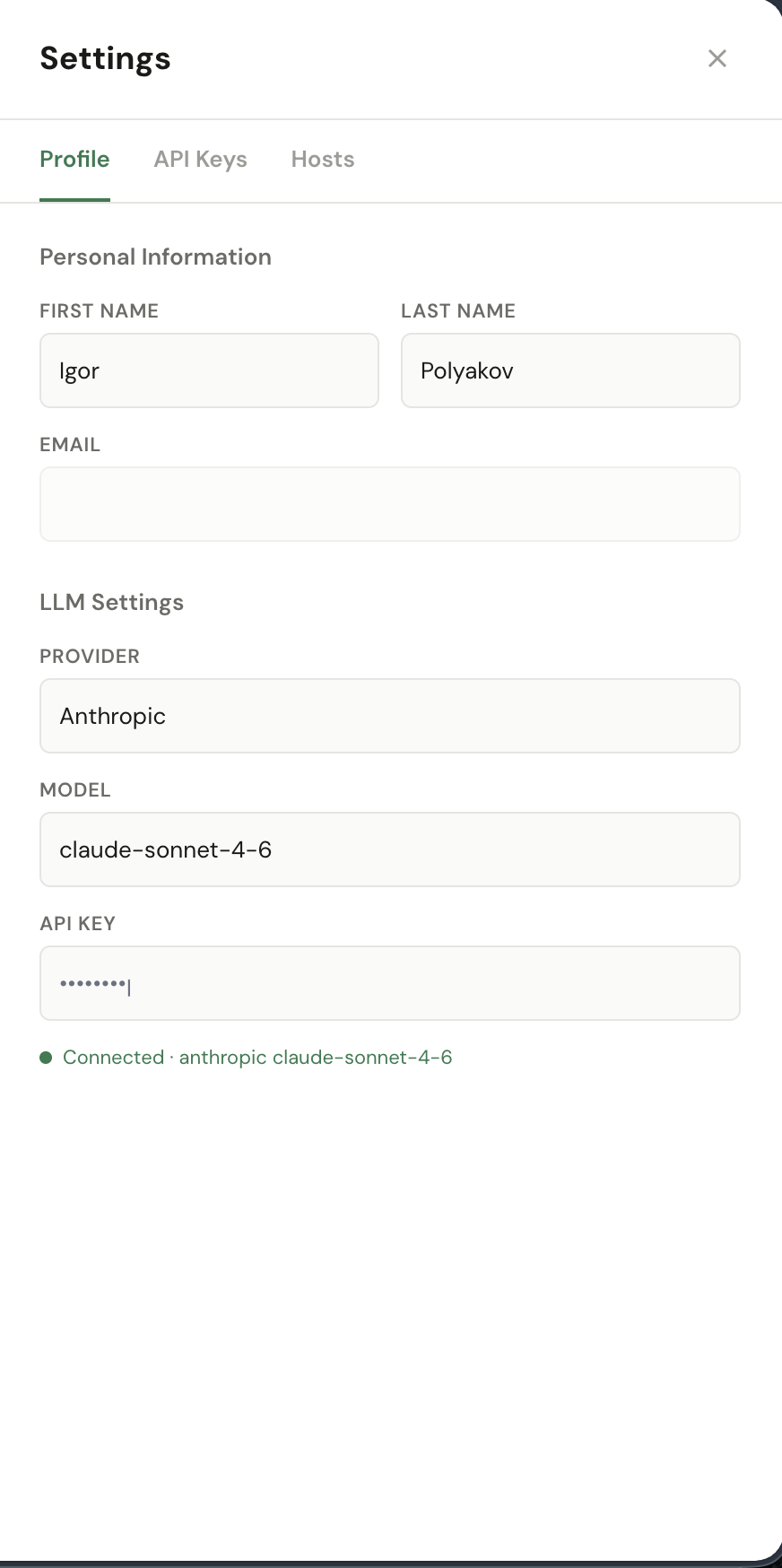
Open Settings from the avatar menu (top-right of the app). The Profile tab holds:
- Personal Information — first name, last name, email. Used by the app for greetings and for the audit log when you take admin actions.
- LLM Settings — your BYOLLM configuration (Provider, Model, API key). The API key is stored masked; only the last few characters are shown back to you. The green Connected indicator means ENGRAM has successfully reached your provider with the key.
3.5 Keeping keys safe
Your provider API key and any Personal Access Tokens are sensitive. Set them in Settings, keep them private, and rotate them if you suspect exposure. ENGRAM only ever displays masked hints of your keys, never the full value. (Personal Access Tokens for external tools are covered in API Keys.)
Personal Access Tokens also carry an authority setting — Owner (the default: everything your account can do) or Restricted (read and add, but no creating or managing credentials and accounts). If a tool you connect reads input you did not write — a desktop assistant that ingests documents or web pages, a webhook, a CI job — give it a Restricted token. See Authority — Owner or Restricted.