Projects & Provenance
Organize your work into projects, and see where every piece of knowledge came from.
1. Projects and Provenance: Organizing Your Knowledge
ENGRAM remembers not just what you know, but where it came from — its provenance — and lets you group related work into projects. Together these keep a growing knowledge base organized and traceable, no matter how many tools and conversations feed into it.
1.1 Where your knowledge comes from
Every article, document, and memory in ENGRAM remembers the activity that produced it. There are three kinds of sources:
- A conversation — a chat in ENGRAM, or an external chat (Claude Desktop, ChatGPT, and others) that you captured.
- A coding session — a Claude Code session you ingested from your terminal.
- A tool capture — when a connected agent saves a file or note directly through ENGRAM's tools, with no back-and-forth chat.
You'll see this as a Source line on an article or document, and as a source chip in the Memory Explorer. Provenance means you can always trace a piece of knowledge back to the work that created it.
1.2 Projects: one body of work
A project groups everything that belongs to one body of work — its conversations, coding sessions, captured research, and the articles and documents derived from them — no matter which tool produced them. A project is usually one repository or one topic you're researching.
Projects share a single namespace: a repo's coding sessions, the external chats you had about it, the articles you synced from it, and your in-app conversations can all live under the same project when they share a name. One project = one body of work.
Conversations you start in ENGRAM Chat without choosing a project land in your default project, named “ENGRAM KB” out of the box. (An administrator can change that default name in Administration → Settings → Projects.) A project you create is yours: you own it, and you are the only one who can configure it or write to it. It stays private to you until you deliberately do two things — put artifacts in it, and add members (§2.5). Neither happens on its own.
1.3 The Projects panel
Click the Projects icon (just left of the column title) on Chat, Knowledge Base, or Coding Sessions to open the Projects panel. It lists your projects, each tile showing a composite count — conversations · articles/documents · sessions — so you can see what's in it at a glance, when it was last active, and a Default badge on your default project. Search by name, or use + New to create a project — typing a name that already exists simply selects it.
This panel is deliberately owner-scoped: it lists the projects you own, because selecting one scopes what the rest of the app writes into, and you write into your own projects. Projects you have been added to as a member appear on the Projects tab instead (§2), which is where you read them.
This panel selects — it decides which project the rest of the app is showing you. To manage a project — see everything it holds, change what it answers from, add or remove artifacts — use the Projects tab described in §2.
1.4 Pinning an active project
Selecting a project pins it across Chat, Knowledge Base, and Coding Sessions at once, and the choice persists across reloads. The Project: <name> chip shows what's active; while a project is pinned, each area shows only that project's items, and new chat conversations file into it automatically. Click the × on the chip to return to All Projects — the no-filter view that shows everything, and the default when you first arrive.
1.5 Renaming and moving
To give a project a friendly display name, open it on the Projects page and edit the name in its Settings. The project's owner can do this, and so can a delegate. It changes only how the project is labeled — not what's in it, and not the identity anything is filed under, so nothing comes loose when you rename.
To re-file something, open the actions menu (the ⋮ icon) on an in-app or external conversation, or on an agent-captured article, and choose Move to project, then pick a target (or create a new one). A few things move on their own, by design:
- Articles and documents derived from a conversation follow that conversation — move the conversation and they come along, so there's no separate “Move” on them.
- Coding sessions stay with their repository; regroup them by working with the project as a whole rather than moving sessions one at a time.
1.6 Projects across the app
- Chat — the conversation sidebar filters to the active project, and new chats file into it.
- Knowledge Base — the Library shows the active project's articles and documents.
- Coding Sessions — pick a project to see its sessions and insights dashboard, or choose All Projects to browse sessions across everything.
Because provenance is tracked and projects share one namespace, the knowledge you produce across many different tools converges into one organized, traceable knowledge base — and moving a conversation to a better-fitting project quietly brings its articles, documents, and memories along with it.
2. Managing projects
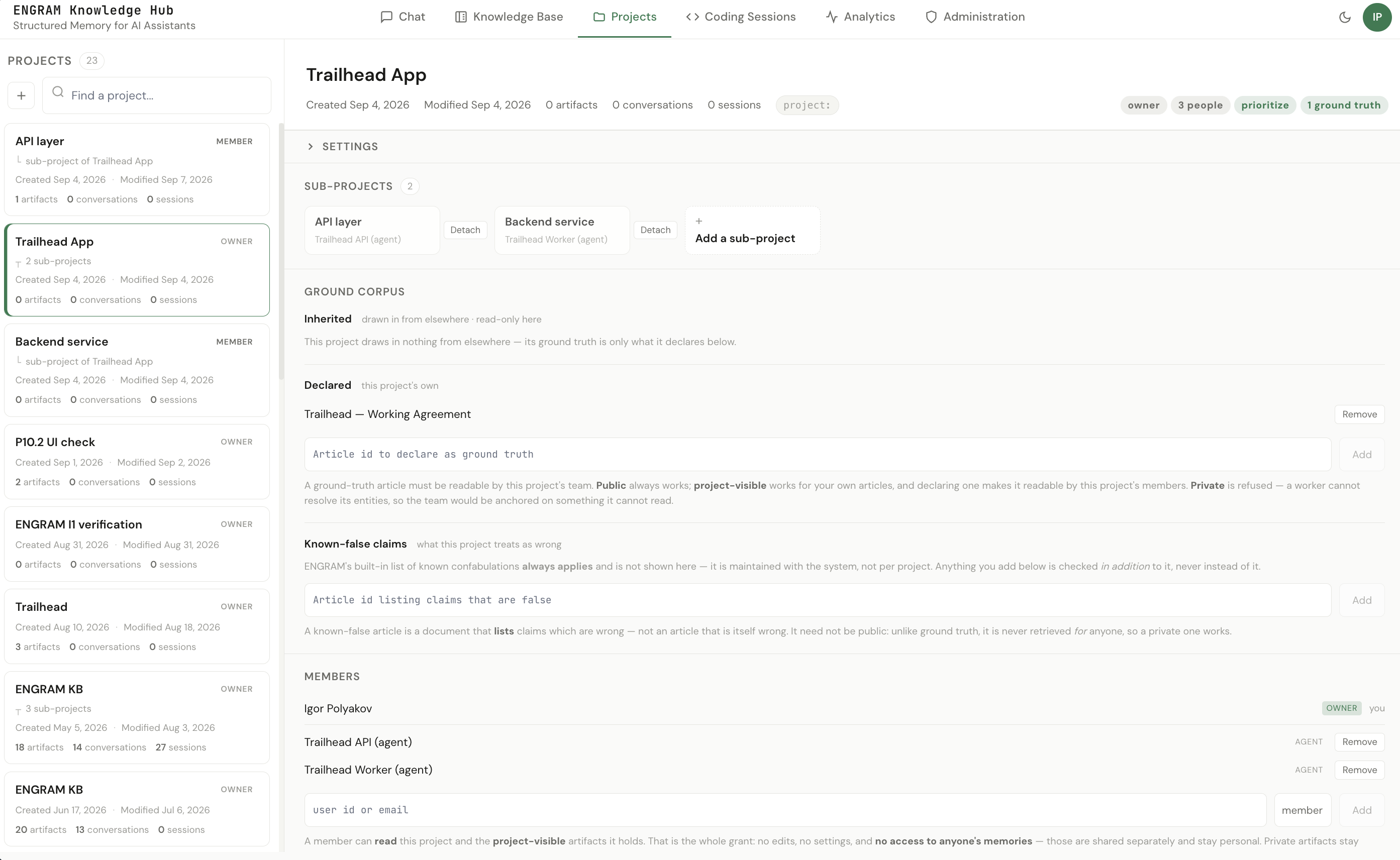
The Projects tab is where a project stops being a filter and becomes something you shape. It lists the projects you are in on the left — the ones you own and the ones you are a member of — search by name, and each card shows when it was created and last touched, plus how many artifacts, conversations and coding sessions it has. Pick one and the right-hand side shows everything about it.
A pill on each card says which is which. OWNER is yours to configure and write to;
MEMBER you may read — the project, and the project-visible artifacts in its
collection — and nothing more. Membership never grants a write, and never reaches your memories.
2.1 What a project holds
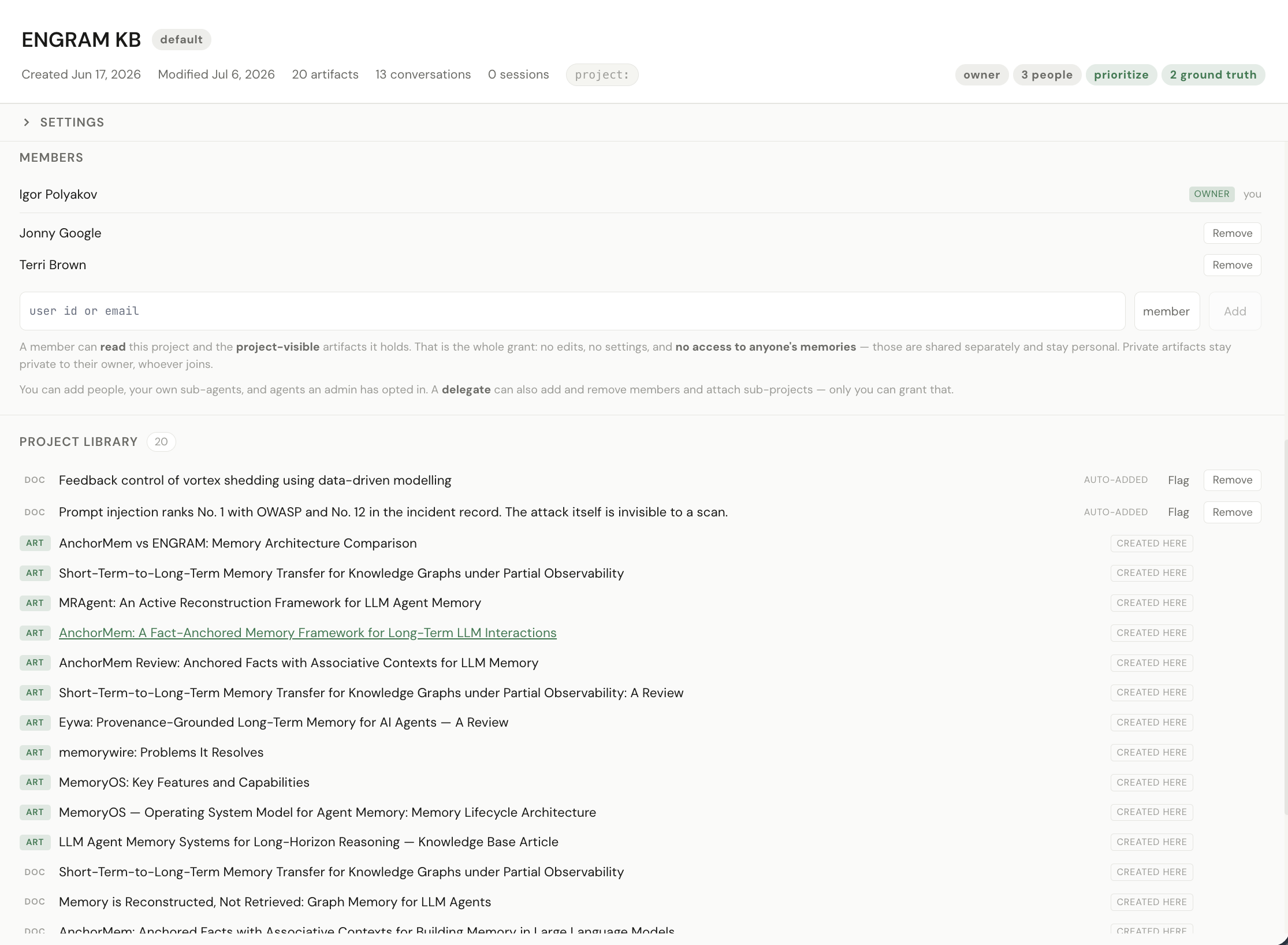
The Project Library lists every artifact in the project — and there are two ways an artifact gets there, which the page distinguishes because they mean different things.
- Created here — the artifact came out of this project's own work: a conversation that belongs to it, or a coding session captured under it. Nobody filed it anywhere; it is simply where it was made.
- Added — somebody put it there on purpose. That is a claim about the work, and it is the one that counts: only deliberately added artifacts can be maintained by the project's agents.
Rows added by an agent are marked added by agent, and ones filed automatically when they were ingested are marked auto-added. An artifact that was created here has no Remove button — there is nothing to remove, because nothing was added; move or delete the conversation it came from instead.
A sub-project (§2.6) also shows an Inherited section: what the parent holds, which this unit's members may read but which is not part of what the unit holds. It is listed separately and stays the parent's — the unit never claims it.
An added row also carries a Flag control: propose it for removal without removing it. A flagged artifact is still in the collection and is still retrieved — the marker says contested, not gone — and it records who raised it, so the project's owner decides later. Keep withdraws the proposal. It exists because removal is the owner's call while noticing that something no longer belongs is anyone's.
2.2 Adding an artifact to a project
Three places, depending on where you are when you decide:
- From the artifact. Open any article or document and use the Projects control beside View entities. It lists the projects that hold this artifact; tick or untick to change it. An artifact may belong to several projects at once — a design note genuinely used by two teams should say so.
- From the Projects page. The Project Library has an Add field that takes an article or document id.
- As you bring it in. The Add to Library panel carries a project chip; whatever you fetch or upload lands there. With no project selected it says which default project it will use rather than choosing silently.
You can add another user's public artifact to your project — gathering public material into your own scope is the point. A non-public artifact of theirs is refused: only an artifact's owner may place a non-public artifact into a project. Otherwise adding — a write every project owner has — would become a way to grant yourself a read of someone else's material.
project visibility. For a private or
public artifact, adding it to a project only organizes: it changes nothing about who can read
it. For a project-visible one it does more, and exactly one thing more — it selects
which project the artifact belongs to, and that project's members are then who
may read it. So the sentence to keep in mind is:
a project-visible artifact is readable by the members of any project whose collection
holds it. Membership and collection, both, and nothing else.
2.3 Project settings
All owner-editable, all about how the project answers questions:
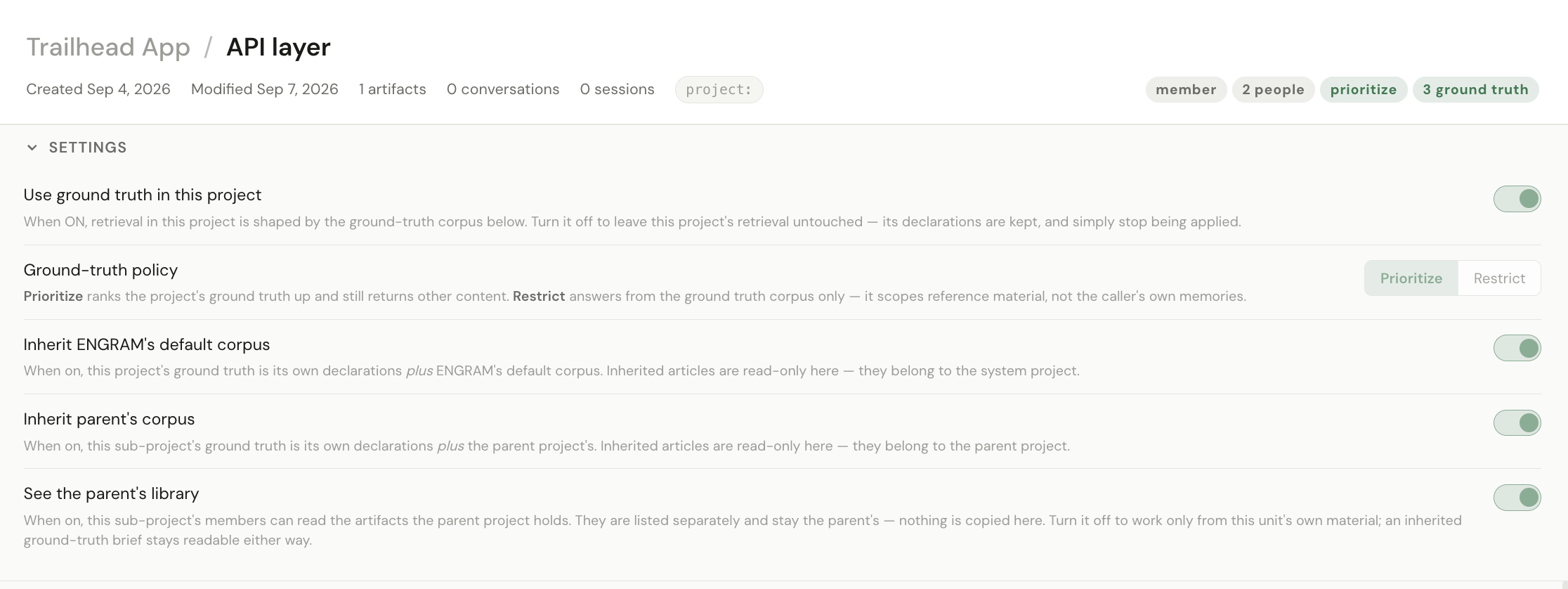
- Use ground truth in this project — whether the project takes part in ground-truth retrieval at all. On by default; turn it off and the project answers exactly as it always did, whatever it has declared.
- Ground-truth policy — Prioritize ranks the project's ground truth up while still returning other material; Restrict answers from the ground truth and nothing else. See §3.3.
- Inherit ENGRAM's default corpus — when on, the project's ground truth is what it declares plus what ENGRAM ships. Inherited articles are read-only here; they belong to the system, not to your project.
A sub-project (§2.6) has two more, both about what it draws from its parent:
- Inherit parent's corpus — the unit answers from the repository's brief as well as its own. Inheritance flows down only: what is true of a repository is true of its parts, but a unit deciding something for itself is not the repository deciding it.
- See the parent's library — the unit's members may read what the parent holds. On by default. What inherits is the readability, never the edge: the parent's artifacts are listed separately and stay the parent's, and never join the unit's own collection. Turn it off to cut the noise — an inherited ground-truth brief stays readable either way, because a brief you cannot read is broken.
The ground-truth settings are greyed out where your operator has not enabled ground truth; the page withholds a control rather than offering one the server would refuse.
2.4 The Ground Corpus panel
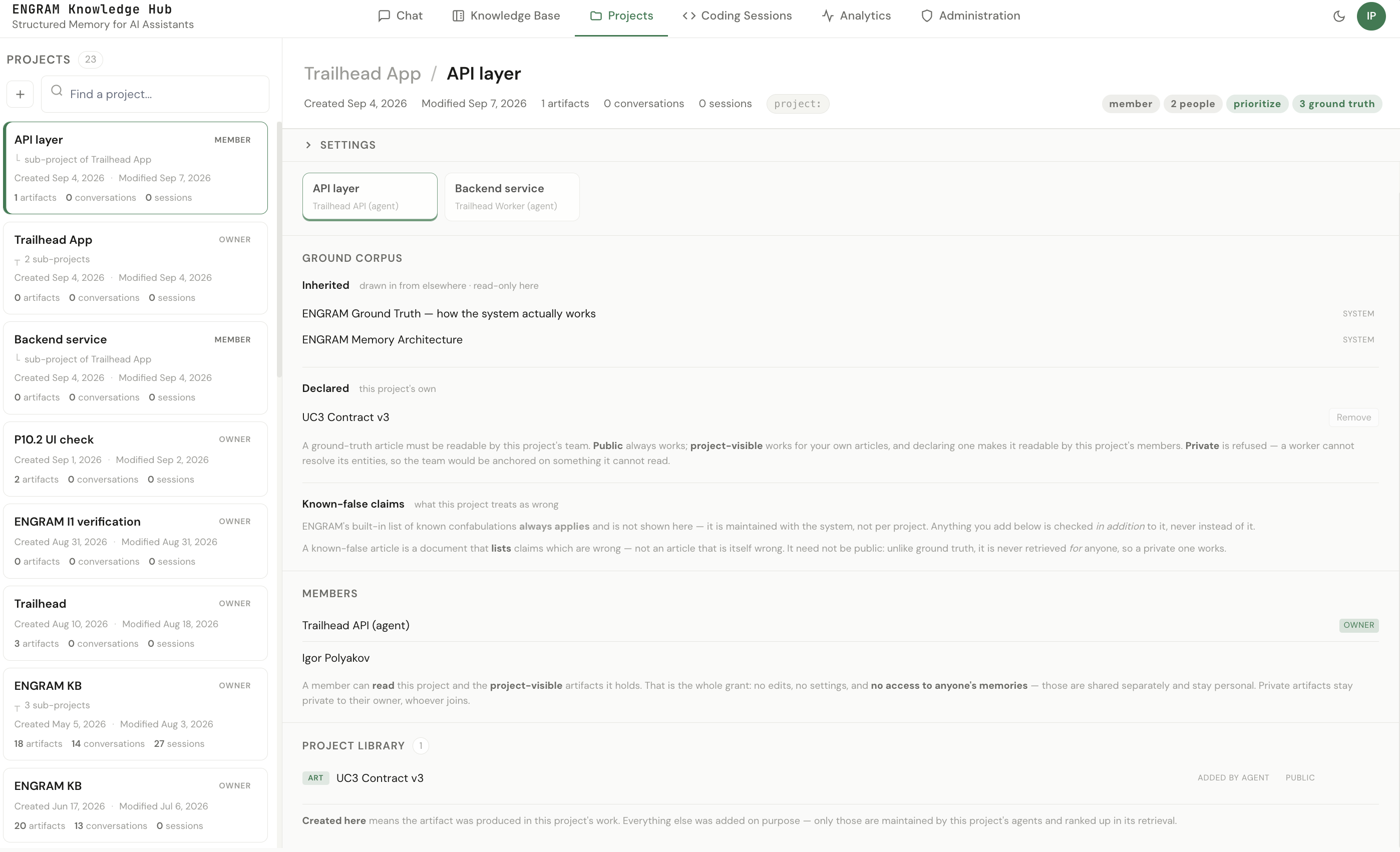
Two lists. Inherited is what the project draws in from elsewhere — read-only, each item tagged with where it came from. Declared is the project's own ground truth, which the owner adds to and removes from. A project that declares nothing and inherits nothing simply is not anchored: searches in it draw on everything you can already see, which is ordinary ENGRAM behaviour rather than a misconfiguration.
Declared articles must be readable by this project — public, or
project-visible and yours. A private one would be invisible to the very people the project is
meant to anchor, so it is refused rather than accepted with no effect — see
§3.2.
2.5 Members: who is on the project
The Members panel is the project's roster. The owner is shown above the list and is never in it — ownership is a property of the project, and two records of one fact can disagree — and every member below carries a role chip.
What a member gets is small and worth stating exactly. A member can read the project, and
the project-visible artifacts in its collection. That is the entire grant. Stated negatively,
because people reliably assume more:
- No writes. Not the settings, not the ground truth, not the collection.
- No memory access at all. Memory is personal — a separate model of owner scope plus explicit grants. Putting someone on your project gives them none of your memories.
privatestays private, to its owner, whoever joins.
Two roles. Member is the read grant above. Delegate adds exactly two verbs — add or remove members, and attach a sub-project — and is still not a writer. Only the owner may grant Delegate, so the role cannot propagate itself through a team; a permission that can grow its own population is not a permission. The Delegate option only appears for the owner.
Anyone may remove themselves, unconditionally. Nobody is held in a relationship they did not ask for, and a member who could not leave would have to ask the person who added them.
Who you may add is the population ENGRAM already uses for grants, not a new consent mechanism: people always; agents in your own sub-agent tree; and agents an administrator has opted in as recipients. Anything else is refused.
2.6 Sub-projects: units of work
A sub-project is a unit of work inside one repository — a service, a component, a stream someone owns. The repository is the parent; each unit hangs off it, and the Sub-projects panel is how you move between them: the repository card sits above its units, and clicking a card swaps the whole right-hand side.
A project is the unit of ownership; a repository is not. The parent belongs to the repository's owner, and each unit belongs to the colleague working it — so a second person on a shared repository owns their sub-project rather than needing a seat inside someone else's. A colleague's unit is listed but not navigable from here, because the panel shows what you can open.
Depth is one. A sub-project may not have sub-projects of its own, which makes cycles impossible by construction rather than by inspection. The repository URL lives on the parent only.
3. Ground Truth: the documents a project answers from
Retrieval is associative — it finds what's related to your question. That is what you want while you're exploring. It is not what you want when a question has a right answer and the wrong one is expensive.
Ground Truth lets a project name the articles that are authoritative for it. Questions asked in that project are then answered from the documents you chose, rather than from whatever happens to sit nearby in your knowledge base.
3.1 When you want it
- A contract or specification that several people — or several agents — build against, where "roughly right" is a defect.
- A report you'll act on, where a plausible invention is worse than an admission that the answer isn't known.
- Onboarding, where the newcomer cannot yet tell a current document from a stale one.
3.2 Declaring a project's ground truth
Pick the articles that are authoritative and declare them. The guard is readability, not a particular visibility value: ENGRAM asks whether this project's members can read the article, and refuses one they cannot rather than silently anchoring nobody.
public— always.project— if you own the article. Declaring auto-adds it to the project's collection, which is what makes it readable by the members; only an owner may place a non-public artifact into a project (§2.2).private— never. No membership widens a private artifact.
The practical consequence is worth stating plainly: a team's brief no longer has to be published to the world to be shared with the team.
A declared article stays authoritative across edits: revise it and the newest version is what answers, with no need to re-declare. Declare nothing and the project behaves exactly as it always has.
3.3 Prefer, or bind
The setting with the largest effect on what you get back:
- Prefer (the default) — your ground truth is ranked up, and everything else you can see is still returned. Good for a project that should be informed by a document.
- Restrict — answers come from the declared set only. Good for a team that must be bound by a contract. Two things worth knowing: it filters articles only, leaving your documents, memories and coding sessions untouched; and while it is on, material outside the set is excluded even when it would have been useful.
Choose restrict when being wrong costs more than being incomplete. Otherwise prefer is the safer default, and you can move between them at any time.
3.4 The corpus you already have
ENGRAM ships its own documentation as ground truth, and your default project already draws on it. Ask "how does recall actually work?" and the answer comes from ENGRAM's own reference rather than from whatever you happen to have saved. There is nothing to switch on.
A project where you have declared your own ground truth keeps exactly the scope you gave it — inheriting ENGRAM's corpus is something a project opts into, never something a release does to it. And a project can do both: hold ENGRAM's reference and its own, which is what you want when writing about ENGRAM alongside something else.
3.5 The same set checks new articles
When an agent drafts an article into your knowledge base, ENGRAM verifies its claims against your ground truth before it lands — so a confident invention that contradicts your own documents is caught rather than filed. The check reads the whole declared set rather than searching it, which is why its verdict doesn't drift with how a question happens to be phrased.